

Blog
CRM Activity Tracking: How to Auto-Log Calls, Emails & Meetings

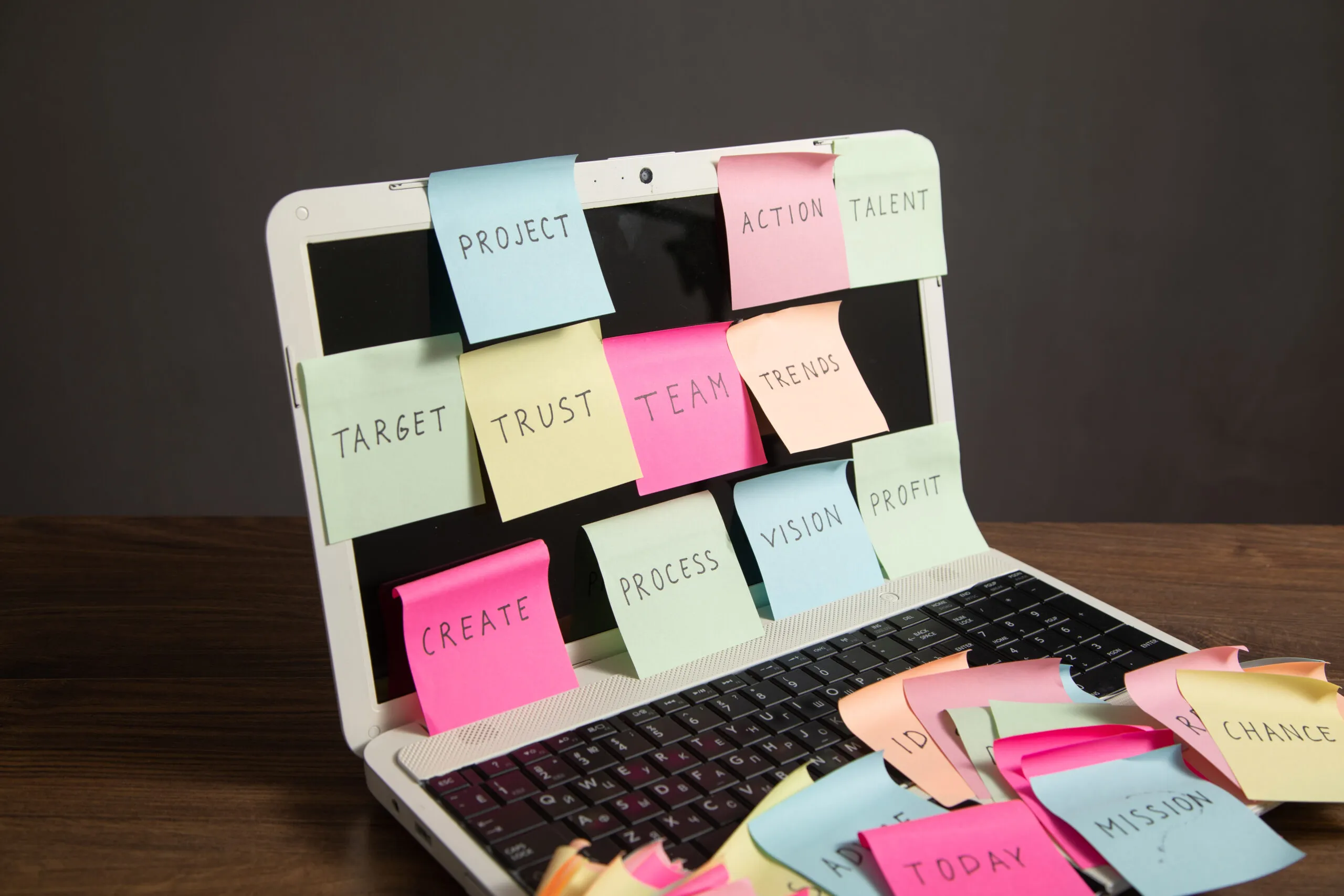
Here’s a scenario you can relate to: you ask a rep what happened with a prospect, and the answer is some version of “I think I called them last week, or maybe two weeks ago I’d have to check my phone.” Meanwhile, the CRM shows the last logged activity was 47 days ago. The deal is still sitting in “Proposal Sent.”
The problem isn’t the rep. It’s that manual CRM logging is tedious, easy to skip, and happens after the activity rather than during it; which means it competes with every other demand on a rep’s attention at end of day. According to Salesforce’s State of Sales research, sales reps spend roughly 28% of their week on administrative tasks. A significant slice of that is CRM data entry that automation could handle entirely.
This guide covers how to set up automatic activity logging for calls, emails, and meetings in your CRM, including what to automate, what to log manually, and how to keep the activity feed from becoming a noisy mess.
What Is CRM Activity Tracking?
CRM activity tracking is the practice of recording every customer-facing interaction, such as calls made, emails sent, meetings held, and demos run, directly on the contact or deal record to which it belongs. The result is a complete, timestamped history of every touchpoint with every prospect and customer.
What it isn’t is surveillance.
The goal isn’t to monitor reps’ every move. but to give your team a shared memory. When a rep goes on vacation, a colleague can pick up the conversation at the right point. If a deal is stuck, a manager can see what’s actually happened rather than relying on verbal recaps. And, if a customer calls in, whoever answers can see the last three interactions before saying hello.
A CRM with incomplete activity data is a contact database, not a sales tool. The difference is whether the interactions are in there.
The Three Channels to Set Up
1. Email Logging
This is the easiest channel to automate and the one to configure first. Most CRMs support bidirectional email sync, meaning every email you send to or receive from a contact in your CRM is automatically attached to their record.
How it works: You connect your Gmail or Outlook account to your CRM. The integration monitors your inbox for email addresses that match existing CRM contacts and automatically attaches those threads to the correct records. You don’t press a button. You don’t BCC a special address. It just happens.
What to configure:
- Set a filter to exclude internal email addresses (your own domain). You don’t want every Slack notification or team email cluttering the feed
- Decide whether you want inbound-only logging (emails they send you) or bidirectional (both directions). Bidirectional is almost always better
- Set up a rule for new email addresses not yet in the CRM. Most integrations let you create a new contact record automatically when a new external address appears, or flag it for manual review
The practical difference in a sales team of six: instead of each rep manually logging outbound emails, every message is in the CRM by the time they’ve moved on to the next task. That’s roughly 15 to 20 minutes per rep per day, handed back.
2. Call Logging
Calls are harder to automate than email because they happen across desk phones, mobile phones, softphone apps, and VoIP systems and not all of them talk to your CRM natively.
- If you’re using a VoIP system integrated with your CRM: This is the cleanest setup. When a rep places or receives a call from a CRM contact, the call is automatically logged to that record, with duration, direction (inbound/outbound), and timestamp. Some integrations capture call recordings or AI-generated call summaries directly in the activity feed. Utiliko’s CRM connects with VoIP via its all-in-one business management platform infrastructure, which routes calls through a directory where the caller ID is matched to existing contact records before the phone even rings.
- If you’re using mobile phones without a VoIP integration: True automation isn’t possible here — you’re relying on reps to log calls manually. The best practice is to make the logging habit as frictionless as possible: a mobile CRM app with a “log call” shortcut, a standard template for call notes, and a team norm that logging happens within five minutes of ending the call (not at end of day when details are fuzzy).
- A hybrid approach that works well: automate call logging through your VoIP or softphone system for scheduled outbound calls, and use a consistent manual template for unscheduled calls — “Call with [Name], [duration], [outcome], [next step].” Four fields, thirty seconds.
3. Meeting Logging
Calendar sync is the cleanest way to handle this. Connect your CRM to Google Calendar or Outlook Calendar, and any meeting with an external contact is automatically logged to their record — with the meeting title, time, attendees, and duration.
What to configure:
- Internal meetings should be excluded, filter by attendee: only log meetings where at least one attendee is an external email address
- For video calls, some CRM integrations can capture the meeting link and mark it as “completed” automatically when the calendar event passes
- If your team uses a scheduling tool (Calendly, Acuity), most of them have native CRM integrations that create a meeting activity the moment a booking is confirmed before it even happens
A meeting logged before it occurs is more useful than you’d think. It sets a task reminder for follow-up, gives anyone on the team a heads-up that a prospect is in a live conversation, and creates an activity the rep can add notes to immediately after the call ends.
What to Auto-Log vs. What to Log Manually
Not everything should be in the activity feed. A CRM where every internal email, calendar invite, and automated marketing email is logged as an activity becomes unreadable fast, the useful stuff gets buried.
- Automate: External emails (both directions), scheduled calls through your VoIP or dialer, calendar-connected meetings with external contacts, form submissions, demo bookings, and key email engagement events (if your email tool syncs with your CRM).
- Log manually: LinkedIn messages and other social touch points, in-person meetings not booked through your calendar system, significant phone conversations that happened on a personal mobile, key context notes (“mentioned they’re evaluating two competitors,” “decision maker is the CFO, not the CEO we’ve been talking to”).
- Skip: Internal emails, automated marketing sequences (log the campaign-level engagement, not every individual automated message), and scheduling logistics emails that carry no sales context.
The goal is an activity feed where a colleague picking up a deal can understand the full relationship in two minutes of scrolling. That means signal, not noise.
Setting Up Activity Templates for Manual Logs
For the activities you do log manually, consistency matters. If one rep logs “called, left VM” and another logs “Outbound call — no answer, voicemail left re: proposal follow-up, will call again Thursday,” the second is 10x more useful.
Create a short set of activity templates for your most common manual log types:
Outbound call:
Outcome: [Connected / Voicemail / No answer] Topic: [one sentence] Next step: [specific action + date]
Meeting / Demo:
Attendees: [names + roles] Key takeaways: [2–3 bullets] Objections raised: [if any] Next step: [specific action + date]
LinkedIn or other social touch:
Platform: [LinkedIn / other] Message type: [connection request / reply / DM] Summary: [one sentence] Follow-up needed: [yes/no + date]
Templates don’t need to be rigid — they just need to give future readers enough context to pick up where the last person left off. Put them somewhere visible: a shared doc linked from your CRM’s help section, or as saved activity note defaults if your CRM supports them.
Common Mistakes That Corrupt Your Activity Data
- Logging at end of day instead of at point of activity. Details erode fast. The call you had at 10 am feels less clear at 5 pm, and the “next step” you meant to log has already been superseded by an email you sent at noon. Build the habit of logging (or spot-checking automation) within five minutes of each interaction.
- Not de-duplicating contacts first. Automated email logging attaches to the contact record it finds — and if you have the same person as three contacts (one from a trade show, one from a form, one manually entered), their activity history is split across three records. Clean duplicates before turning on auto-logging.
- Logging every automated marketing email as an activity. If your CRM syncs your email marketing platform at the individual-email level, you’ll end up with an activity feed that shows “marketing email sent” 47 times before a single human conversation appears. Log campaign engagement at the level of “entered campaign X” or “clicked pricing link” — not individual email deliveries.
- No ownership rule for inbound calls. If a prospect calls your main number and whoever picks up doesn’t log it, the activity doesn’t exist. Establish a clear rule: whoever takes an inbound call owns the log entry. Five minutes, standard template.
Bringing It Together: What a Complete Activity History Looks Like
When email, call, and meeting logging are set up and working — automatic where possible, templated where manual — a contact record in your CRM tells a complete story. Someone opens the record on a Monday morning and can see: first touched via LinkedIn in February, filled a contact form in March, attended a demo in April, had a follow-up call on May 3rd where they mentioned evaluating a competitor, email thread from May 8th where they asked about pricing, radio silence since May 12th.
That’s not just a log. That’s the context a rep needs to know exactly what to say in a follow-up call that same Monday.
The more your CRM, email, phone, and calendar tools live in the same system, the less configuration work this requires. When you’re running a small business management platform that handles CRM, VoIP, and billing in one place, the activity data flows between functions automatically: a deal update from a call is visible to the person generating the invoice without anyone copying data between systems.
Utiliko lets you tag all activity and monitor updates without a hitch. You can try full CRM activity tracking, including email sync, meeting logging, and VoIP integration, in Utiliko’s 14-day free trial, no credit card required.
Frequently Asked Questions
What is CRM activity tracking?
CRM activity tracking is the practice of recording every customer-facing call, email, meeting, demo, proposal directly on the contact or deal record in your CRM. The result is a complete timeline of every touchpoint with every prospect and customer, accessible to anyone on your team.
How do I automatically log emails in a CRM?
Connect your Gmail or Outlook account to your CRM using the platform’s native email integration. Once synced, the CRM monitors your inbox for email addresses matching existing contacts and attaches those threads automatically. You’ll need to configure filters to exclude internal emails and decide whether to log bidirectionally or inbound-only.
Can my CRM automatically log phone calls?
Yes, if you’re using a VoIP or softphone system that integrates with your CRM. When the call is placed or received through the integrated system, it’s automatically logged to the correct contact record with duration and timestamp. Calls on personal mobile phones without VoIP integration require manual logging.
What’s the difference between an activity and a note in a CRM?
An activity is a logged interaction with a timestamped type (call, email, meeting) that also appears in calendar or task views. A note is a free-text annotation attached to a contact or deal record, not associated with a specific interaction type. Use activities to track what happened and when; use notes to capture context, observations, or information that doesn’t fit a structured activity log.
How do I stop internal emails from being logged in the CRM?
Set up an exclusion filter in your email integration settings — most CRMs let you specify domains or addresses to ignore. Block your own company domain at minimum. You can also flag any external email address you want to exclude (personal addresses, vendor contacts unrelated to sales) from being logged.
What activities should I log manually vs. automatically?
Automate: external emails, VoIP/softphone calls, calendar-connected meetings with external contacts, demo bookings. Log manually: LinkedIn messages, in-person meetings, mobile calls outside your VoIP system, and qualitative context notes. Skip: internal emails, automated marketing emails, and scheduling logistics that carry no sales context.

More articles
 Blog How to Choose the Best CRM for Sales Team
A rep runs a great discovery call on Monday. By Thursday, nobody can say for certain who owns…
Blog How to Choose the Best CRM for Sales Team
A rep runs a great discovery call on Monday. By Thursday, nobody can say for certain who owns…
 Blog The Complete CRM Comparison Guide: How to Compare CRM Software and Choose the Right One
Seventy percent of CRM implementations fail — not because the software is bad, but because businesses chose the…
Blog The Complete CRM Comparison Guide: How to Compare CRM Software and Choose the Right One
Seventy percent of CRM implementations fail — not because the software is bad, but because businesses chose the…
 Blog Top 10 CRM Platforms for Electrical Contractors in 2026
Managing customer relationships in an electrical business isn’t just about storing phone numbers anymore. Today’s contractors coordinate multiple…
Blog Top 10 CRM Platforms for Electrical Contractors in 2026
Managing customer relationships in an electrical business isn’t just about storing phone numbers anymore. Today’s contractors coordinate multiple…